Approve coding tasks from your phone
Use CodeStilt on your phone. Get a notification when a plan needs you, then approve it or stop a task from anywhere. Your computer does the work.
Works on iPhone and Android in Safari or Chrome. Nothing to download from a store.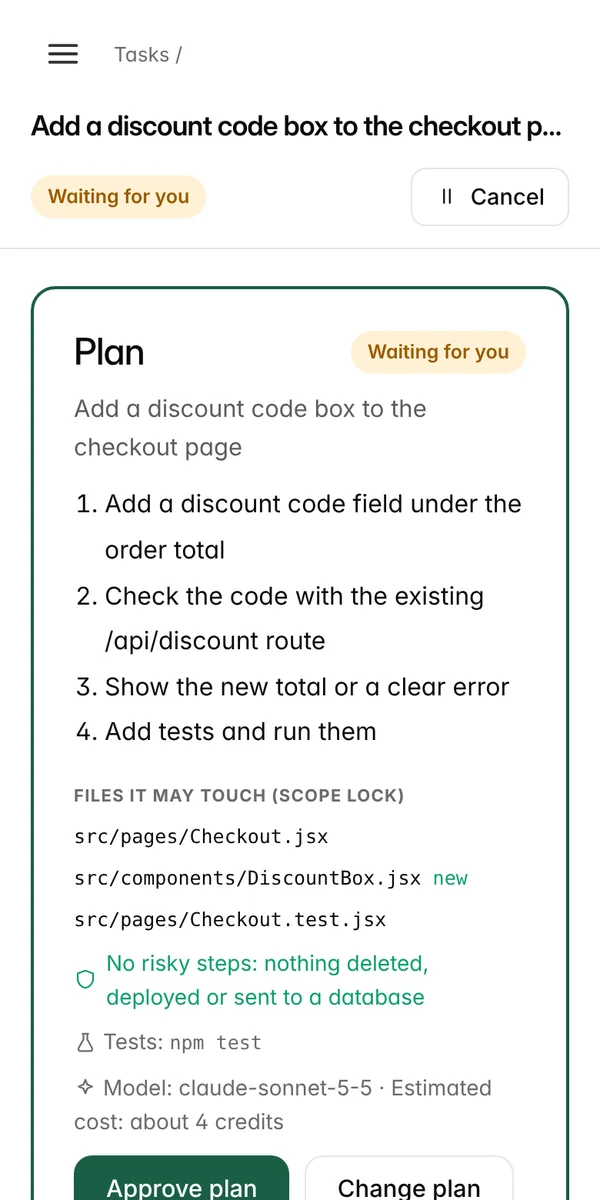
Review the plan
before it runs
See every step, every file and the cost first.
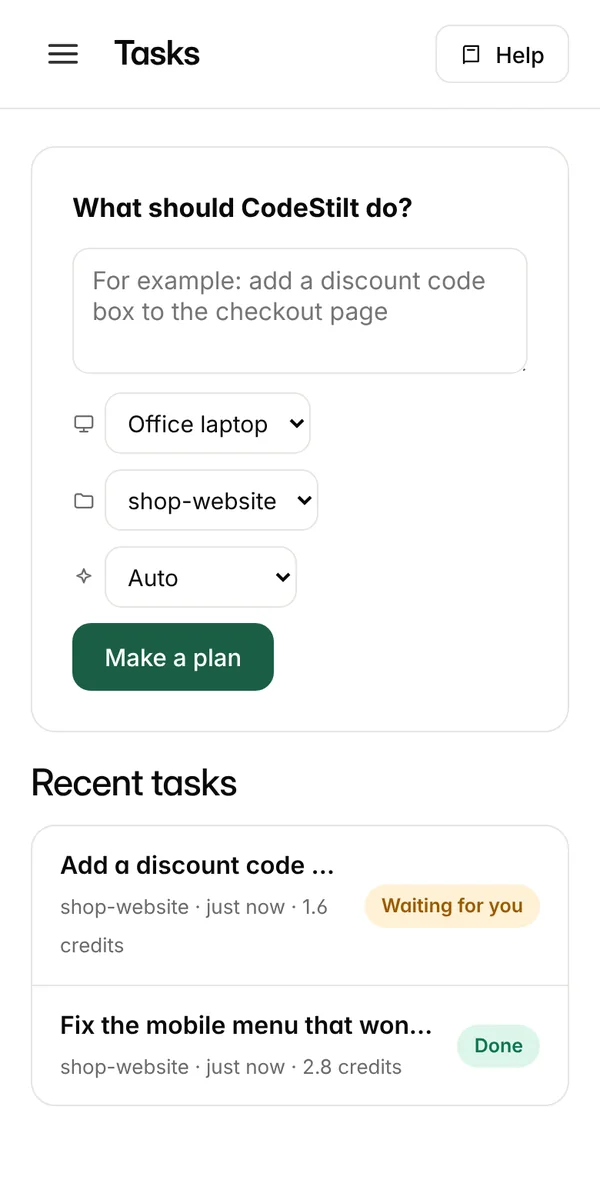
All your tasks
one screen
Start new tasks and track every one.
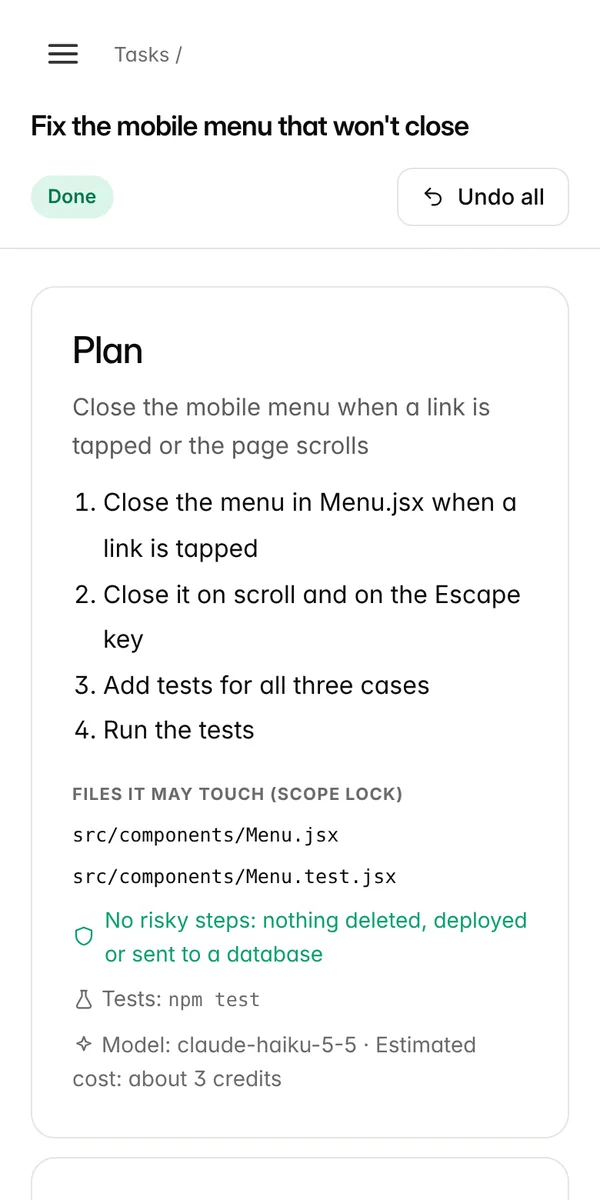
Done, tested
and undoable
One tap puts every file back.
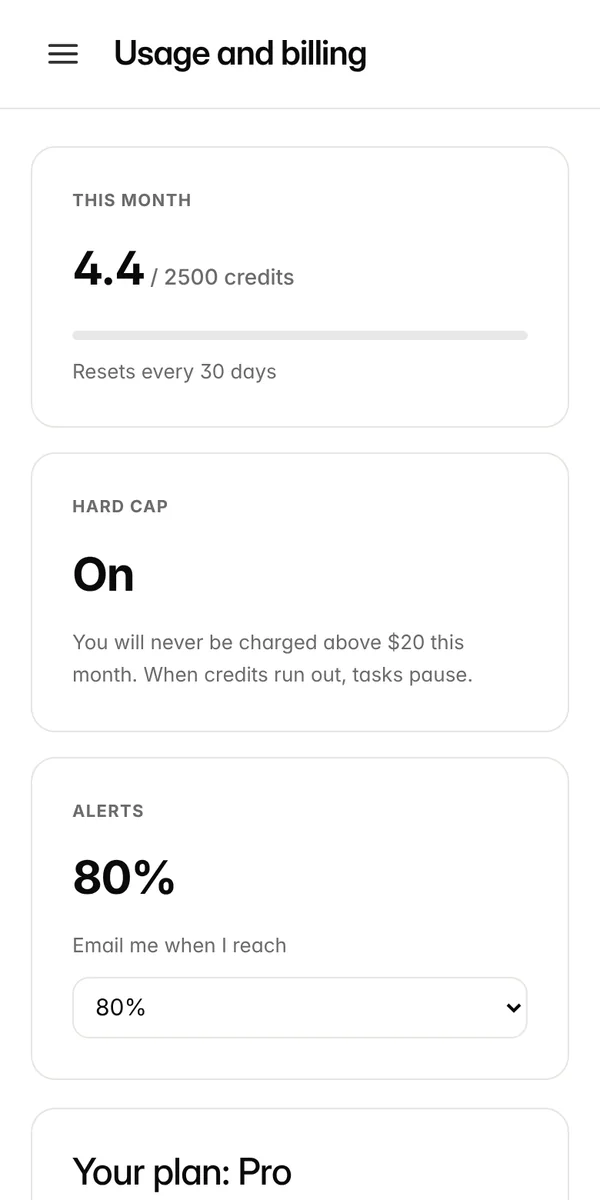
Keep track of
your credits
See what every task cost, live.
Your agent in your pocket
Notifications
Only when something needs you: a plan, a question, or a finished task.
Read the plan
Steps, files and cost, made easy to read on a small screen.
Give new tasks
Type a task and send it to any of your linked computers.
Stop anything
Pause or cancel a running task instantly.
Undo from anywhere
Put back a finished task without opening your laptop.
Sign out everywhere
Lost your phone? Sign out all devices from the web dashboard.
Add CodeStilt to your home screen
There is nothing to download from a store. The CodeStilt mobile app is the dashboard saved to your home screen, with notifications.
- 1
iPhone: open in Safari
Go to app.codestilt.com in Safari and sign in.
- 2
iPhone: add to Home Screen
Tap Share, then Add to Home Screen. Notifications need iOS 16.4 or newer and only work from the home screen app.
- 3
Android: open in Chrome
Go to app.codestilt.com in Chrome and sign in, then tap the menu and Install app or Add to Home screen.
- 4
Turn on notifications
Open CodeStilt from the home screen, go to Settings, Notifications, and turn on phone notifications.
- 5
Give a task
Type a task and pick a linked computer, or wait for the first plan to come to you.
- 6
Approve from anywhere
Tap the notification, read the plan and approve it. Your computer does the rest.
Only when something needs you
| Event | Default | Options |
|---|---|---|
| A plan is ready | App and phone | App and phone; app, phone and email; off |
| The danger wall needs an answer | App, phone and email | App and phone; app, phone and email |
| A task finished | App and phone | App and phone; app, phone and email; off |
| Credits reach your alert level | Email; app only |
News and offer emails are off unless you turn them on.
Made for a small screen
All your tasks on one screen
Start a new task, see which ones are waiting for you, and open any task to see its progress.
- Pick any linked computer
- Offline computers are marked
Keep an eye on your credits
See credits used this month, what each task cost and how close you are to your hard cap.
- Hard cap: never charged above your plan
- Alert at 80% by default
Mobile questions
Straight answers to the questions people ask us most.
Is there an App Store or Google Play app?
Not yet. A store app is planned. Until then, the home screen app is the CodeStilt mobile app, and it does everything the store app will: tasks, plans, approvals, danger wall answers, undo and billing.
Does my phone do the coding?
No. Your phone gives tasks and approvals. The work happens on your linked computer, inside the folders you allowed.
Why don't I get notifications on iPhone?
On iPhone, notifications only work from the home screen app on iOS 16.4 or newer. Open CodeStilt from the home screen icon, not from Safari, and turn notifications on in Settings.
Can I stop a task from my phone?
Yes. Open the task and cancel it, or pause the computer from the Computers page.
I lost my phone. What should I do?
Sign in on another device and sign out all devices from your account settings. Your linked computers are not affected.
Start free. No card needed.
Download CodeStilt, link your computer, and give your first task in two minutes.